Troy Middle Schools Virtual Media Center
  • Home
  • Research
    • Databases
    • Subject Research >
      • Careers Research
      • National History Day
      • Festival of Cultures
    • Citing Your Sources
    • Finding Images, Video, & Music
  • Reading Resources
  • Troybery
  • FAQ
    • Services and Policies
    • How to check your library account
    • How to set up Discover
    • How to place a hold
    • How to get eBooks
  • Teachers
Picture

Citing Your Sources

It is recommended to use MLA (Modern Language Association) 8 format. Here are some helpful websites to understand MLA Format:
  • Purdue Owl: MLA 8 help guide
  • ​MLA 8 template
  • MLA 8 template explanation

Login to NoodleTools to create your Works Cited!
  1. Go to http://my.noodletools.com/logon/signin​. Login where it says "Access via Office 365" using your TSD email and password. If logging in for the first time, make sure that you select "Create a New Account" and enter your school and graduation year when prompted.
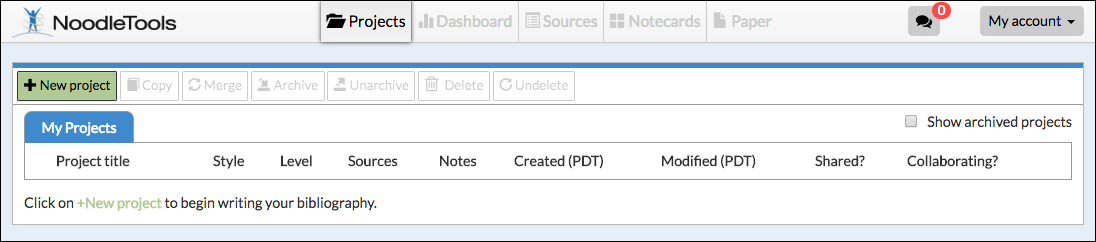
  2. ​On the Create a New Project screen that pops up, enter a name for your project and select the MLA 8 citation style and junior level. Click Submit.
  3. The Dashboard screen appears. The Dashboard organizes your work environment for effective research. You can see assignments, create to-do lists, submit work, and act on feedback from teachers in an organized way, and all in one place.
  4. To begin citing sources, click Sources in the navigation bar at the top.
  5. On the Sources screen, click Create new citation and select the best match for your source from the choices given.
  6. Click Continue to go to the next screen.
  7. Fill in the citation form with information about your source. If your source is a book, you can locate the book in WorldCat (via an ISBN number or title/author search) and it will automatically fill in the form with the book's details, checked and revised for accuracy by NoodleTools.
  8. After you finish entering information about your source, click Submit to save your new citation.
Watch NoodleTools Tutorials!
  • How to create a new project
  • How to share your project with your teacher
  • How to respond to comments in projects​

Helpful NoodleTools Instructions

  • How to create notecards
  • How to create and use an outline
  • How to work with Projects
  • How to use the Dashboard
  • How to share your project with a partner
  • How to share your project with a teacher
  • How to create and edit a source reference
  • How to print/export your source list
​
For all other NoodleTools questions, visit their Help Desk.

NoodleTools Companion App

The NoodleTools App allows you to scan books ONLY and add them to your projects.  Here is how to log in to the app using your Office 365 account:
  1. When you are logged into your web version of NoodleTools through the Safari browser, click on My Account, then My profile.
  2. Locate the "Companion Key" in the NoodleTools user profile. 
  3. Use that key as the password for logging in to the app (in conjunction with Office 365 email as the username).
Powered by Create your own unique website with customizable templates.
  • Home
  • Research
    • Databases
    • Subject Research >
      • Careers Research
      • National History Day
      • Festival of Cultures
    • Citing Your Sources
    • Finding Images, Video, & Music
  • Reading Resources
  • Troybery
  • FAQ
    • Services and Policies
    • How to check your library account
    • How to set up Discover
    • How to place a hold
    • How to get eBooks
  • Teachers
